 icon in
 MasterTax Files
Customers who enabled the SBEA feature set can also use the MasterTax PTS and RTS files to report their tax data in accordance with the act. When properly configured, the system will create F codes on the MasterTax reporting files, identifying the federal tax data based on the associated client federal entity.
Note: Before submitting your files with MasterTax, you must alert MasterTax Support that you are a PrismHR customer and that you are planning to submit SBEA files. If you do not, you could be charged additional fees by MasterTax.
PTS File
The PTS file breaks out federal tax data by client. If the client is associated with multiple CPEO employers, the client will be associated with multiple F codes on the reporting files. This helps to link voucher data based on the common pay agent (the employer).
Important MasterTax Interface Settings
| • | Provide SBEA Payroll Breakout: If this field is enabled, the PTS file will break out the federal tax basis and liability amounts by client federal entity. |
| • | Include Certified Relationship Setups: If this field is enabled, the PTS file output will include the 210 (company setup) records that link the client federal entity to the employer. The system creates the 210 record specifically for employers. On the 210 record for each employer, position 45 indicates the EIN Type. When this value is P (as shown below) it indicates that the employer is a common pay parent. |
| • | The 9-digit number after the P is the employer FEIN. |
| • | Likewise, on the 210 record for the client federal entity (F code), position 45 will be a C, which denotes the client as a common pay child. The next 9 digits are the EIN for the associated employer. |
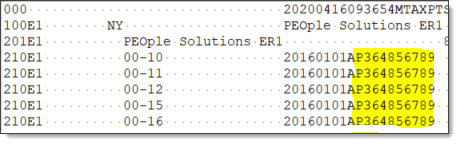
Note: In order for the system to associate the 210 records with the F codes, you must enable Send Company Tax Record in PTS File on the MasterTax Interface Parameters. Activating this setting can cause issues in MasterTax if the FEIN and Unemployment ID numbers in PrismHR do not match the FEIN and unemployment IDs in Mastertax. If this describes your situation, PrismHR recommends using the SBEA Relationship file instead of performing company setup on your daily PTS file (see below).
RTS File
The MasterTax RTS (reconciliation tax summary) file accommodates client federal entities for 941 R reporting.
Note: PrismHR is working with MasterTax to support the 940 R; MasterTax does not support the 943 R.
To support the RTS file, you must set your MasterTax RTS version to 36 or higher. see Setting MasterTax Interface Parameters for more information.
About the File
Effective January 2020, SBEA employers can enable the Build W-2 Records? parameter to break out Form W-2 reporting records on the RTS download.
The Build FUTA Exempt records? field can only be used with MasterTax versions 37 and above.
To build the RTS file:
| 1. | On the Work Centers menu and select MasterTax Processing. Then, under File Exports, select Mastertax RTS File Build. |
| 2. | Complete these fields as required: |
|
Field |
Description |
||||||||||||||||||
|---|---|---|---|---|---|---|---|---|---|---|---|---|---|---|---|---|---|---|---|
|
Tax Year |
Tax year for this build. |
||||||||||||||||||
|
Tax Quarter |
Tax quarter for this build. |
||||||||||||||||||
|
Limit to Employer |
Filters so that the file generated only contains tax information for a specific employer. |
||||||||||||||||||
|
Include client reportable taxes for PEO clients |
Client-reported taxes that are under the client's FEIN or unemployment ID. This only displays when the Limit to Employer field has a set value. |
||||||||||||||||||
|
Limit to Client |
Client ID that this build is limited to. This only applies to client SUTA reporting states. |
||||||||||||||||||
|
Build FUTA Exempt Records |
This only applies when running an RTS build for the fourth quarter. |
||||||||||||||||||
|
Exclude Pennsylvania local taxes when no tax has been withheld |
Enable to exclude PA local taxes if no tax has been withheld. |
||||||||||||||||||
|
Include zero taxable wages for Ohio non-resident local tax |
Enable to include zero taxable wages for Ohio non-resident local tax. |
||||||||||||||||||
|
Limit to ASO/ASA/PAY service types |
Enable to limit this build to ASO/ASA/PAY service types. |
||||||||||||||||||
|
Build SBEA certified relationship file |
Enable to build an SBEA certified relationship file. |
||||||||||||||||||
|
Use tax code 00-87 to determine SS credit within MasterTax? |
Note: This setting applies to 2021 COVID-19 tax reporting. If selected, the system performs the following calculation during the RTS build: After computing this value, the system uses this value to fill in Statistic 1 of the 501 record for tax code 00-81, up to the value reported under 00-81 on the 500 record. If any amount remains after reaching the 00-81 reporting value, the system enters the remainder into Statistic 1 of the 501 record for tax code 00-80. For more details about these tax codes, see the COVID-19 Feature Guide. |
||||||||||||||||||
|
Use COVID Credits as post March 31? |
Note: This setting applies to 2021 COVID-19 tax reporting. The federal government makes a distinction, for reporting purposes, between COVID-19 credits accrued before and after April 1 2021, since this is the date the American Rescue Plan Act (ARP or ARPA) took effect. Select this option to consider any COVID-19 credits accrued in Q2 2021 as "post-March 31" credits, which means they were accrued subject to the American Rescue Plan Act. These credits will be reported accordingly on the RTS file. On the file itself, this means:
For more details about reporting COVID-19 tax credits, see the COVID-19 Feature Guide. |
||||||||||||||||||
|
RTS File History |
You can save and download historical files with the following information:
|
||||||||||||||||||
|
Configuration Information |
Displays the MasterTax version number. You cannot build an RTS file unless you are using MasterTax Version 39 or greater. |
| 3. | Click Build. A progress window displays. You can download an RTS file, or view an audit detail or summary report. |
Note: The SBEA Certified Relationship File includes only the 100, 200, and 210 records. The file has the payroll codes for the client federal entity (a, b, or c designation) as well as all federal tax codes, including AG codes.
CPEO e-Filing
Note: To file your 940/941 Schedule R correctly, MasterTax now requires Federal Withholding and Unemployment tax data at the client level.
To file as a CPEO in MasterTax, you must contact MasterTax Support to verify that you have a MasterTax PEO license. If you do not, you will need to convert your MasterTax license to a MasterTax PEO license. MasterTax will make every attempt to ensure your invoice does not increase as a result of switching to this new license type. Please have the following information ready when you contact MasterTax Support:
| • | Number of Employer/PEO companies |
| • | Number of total employees |
| • | Number of clients. |
MasterTax will provide you with the new monthly fee (if it is not the same as your existing monthly fee) and the additional client setup fee associated with adding new clients to MasterTax.
The PTS import file creates the requisite client structure within MasterTax. The import assigns new client payroll codes (which begin with the letter F) to existing clients that were previously set up within MasterTax, and creates new companies for clients that have not been set up. A client company record would typically already be set up in MasterTax for any client in a client reporting state. The file will also create the Common Pay Agent link to link the Employer to the Client for Federal tax codes so that when MasterTax creates the 941 Schedule R for the Employer, it will have the appropriate client information.
Before importing this file into MasterTax, we strongly recommend reviewing your current configuration within MasterTax by navigating to Company View, selecting a Company, and clicking the FEIN link under the Company tab
Note the following implications of the import:
| • | All new client payroll codes on the file with the same FEIN will link together under a single company record within MasterTax; |
| • | This company record will have a Common Pay Agent link to 1 employer; |
| • | If a client company with the same FEIN already exists in MasterTax, any new client payroll code(s) with that FEIN will link under this existing client company record; |
| • | If a client company with the same FEIN does not already exist in MasterTax, any new client payroll code(s) with that FEIN will create and link under a new client company record. |
e-Filing with Quarterly Express Plus
As an alternative to e-filing with MasterTax, PrismHR offers the ability to e-file your Schedule R Form 941 return with Quarterly Express Plus (QEXPlus).
To export and process the QEX Plus 941 file:
| 1. | On the Work Centers panel, click Work Centers|Tax > Quarterly Tax Processing, and under 3rd-Party Exports select 941 File Processing. |
| 2. | Complete these fields as required: |
|
Field |
Description |
|---|---|
|
Employer ID |
Click the link and select the ID of the employer whose information is being uploaded and processed. |
|
Year |
Year for the tax information. |
|
Quarter |
Quarter of the year for this tax information. For example, 1 indicates first quarter, and so forth. |
|
Include Schedule R? |
Generates a third, optional file that breaks out federal taxes by client. Enabling this field displays the Schedule R Report field. |
|
Deposit Schedule |
Specifies the frequency at which the employer makes deposits. Options are Monthly and Semi-Monthly. |
|
941 Worksheet |
Builds the Form 941 worksheet. |
|
941 Schedule B |
Builds Form 941 Schedule B. |
|
Schedule R Report |
Builds the Schedule R report. |
| 3. | Click Build. |
To use this download for future Schedule R Form 941 filings, contact N. Wayne Lewis of Lewis Software Associates, LLC.
| • | Email: nlewis@qexplus.com |
| • | Phone: 1-877-854-0100 |
| • | Company Website: www.qexplus.com |
