 icon in
 Getting Started with the PrismHR API
This document describes how to:
| • | Find API documentation and resources |
| • | Create a web service user in PrismHR |
| • | Determine your PEO ID |
| • | Create a new API session |
API Documentation
To get a copy of the API specification that you can upload to your test applications, log in to the Customer Resource Center and navigate to the openapi.json (Swagger) file for PrismHR API article.
The most up-to-date API documentation and release notes are available on the PrismHR API docs website. The API Reference Documents article provides links to additional documents, including the Single Sign-On User Guide.
See the API Support Policy article for relevant information about supported API versions.
Creating a Web Service User
With the Web Service Users form, you can configure multiple web service users to provide customized access for each application that calls the PrismHR API.
The API shares the same user registry as all other web-based services in PrismHR. To call the API from your client application, you must configure a web service user in PrismHR according to the security requirements of your organization. Typically, this means restricting web service user access to certain clients/companies, API methods, and IP addresses.
To create a web service user:
| 1. | In PrismHR, open the Back Office menu and select System|Change > System Parameters. Then, from the Actions menu, select Web Service Users. |
| 2. | Complete the following fields as needed: |
|
Field |
Description |
||||||
|---|---|---|---|---|---|---|---|
| User ID |
Enter or select the ID for the user profile. Note: If this is a Marketplace Integration user, enable that field to display a second field where you can select the marketplace vendor's description:
After saving this update, you cannot change the User ID, the Marketplace Integration field, or the vendor description field. Note: After the User ID is entered, additional options display on the form if there are pending changes to the web service user's permissions. For more information about our automation process used by some marketplace partners, see Updating Web Service User Permissions in the API documentation. |
||||||
| User Name | Name of the user. | ||||||
| Password | Password for the web service user (required for obtaining an API session token). | ||||||
| Account Disabled | Select this field to deactivate the web service user account. | ||||||
|
Minimum API Version |
Select a supported API version from the list. The system will restrict the user from accessing versions prior to the selected one. |
||||||
| Company Access |
Defines the companies that users can access. Options are:
Note: By default, web service users can see only active companies. With some API methods, they can also see inactive companies. Companies with other statuses (pending, pre-terminated, and terminated) are not available. |
||||||
| Company ID | (Optional) Enter one or more Company IDs. A Company Name displays for each ID. The Company Access setting determines whether the user is restricted from seeing the specified companies, or only has access to the specified companies. | ||||||
| Contact Information | For example, the user's phone number or email address. | ||||||
| Disable IP Restrictions |
Select this field to disable the IP restriction feature. Note: This is not recommended for use except by Development. |
||||||
| Allowed IPs |
Allows specific IP addresses to access the web service engine with the user's credentials. To specify a range of IP addresses, use a hyphen. For example: Note: The IP address range feature applies to API versions 1.23 and above. This example would grant access to all IP addresses falling between 123.456.789.100 and 123.456.789.200, inclusive. |
||||||
| Disable Method Restrictions |
Select this field to disable method restrictions. Note: This is not recommended for use except by Development. |
||||||
| Allowed Methods |
Use this grid to grant the web service user access to only certain endpoints of the PrismHR API. For example, if you created a web service user for a time clock vendor, you might want to restrict that user's access to only methods that return time clock-specific data. When setting up allowed methods, you can use an asterisk (*) to grant access to all methods in a particular service. For example, ClientMasterService.* grants the web service user access to all Client Master Service methods. You cannot use an asterisk to grant access to SystemService methods. Note: Leave the Allowed From and Allowed To fields blank if there is no time of day restriction for the method. All times are Central Time.
Any changes made here will be applied the next time the user logs into the system. If the user is currently logged in, access does not change. |
| 3. | Click Save. |
Verifying the PEO ID
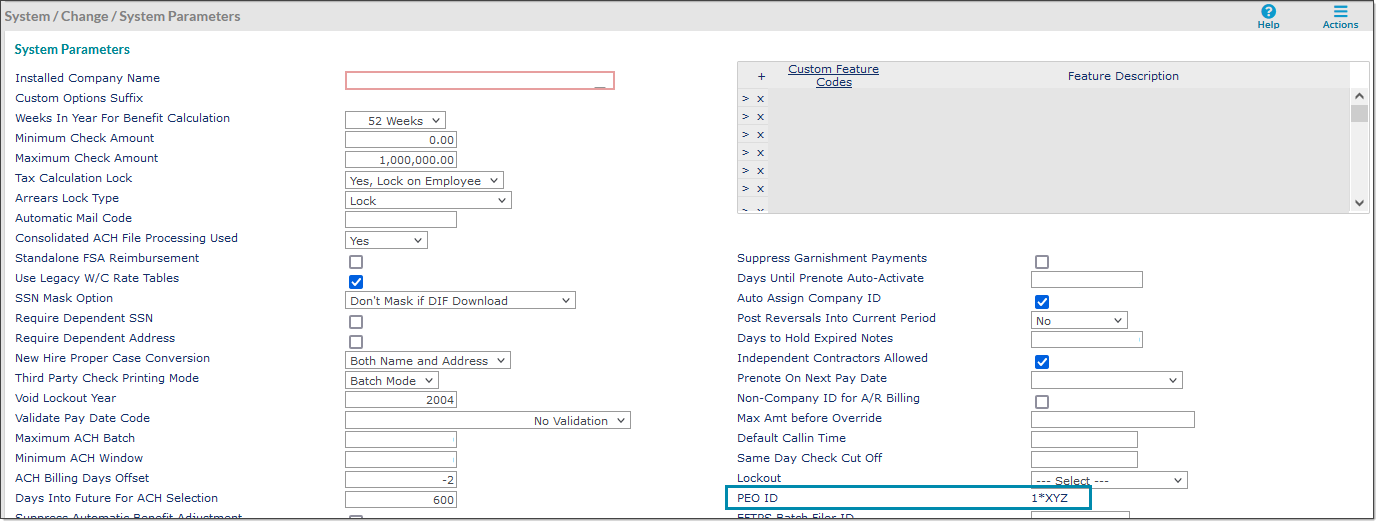
Once you create a web service user, we recommend verifying your PEO ID. To create an API session, you need this PEO ID along with your web service user credentials.
The PEO ID field is located on the System Parameters form, found in the Back Office menu under System|Change.
Note: Do not add or change the PEO ID. If the PEO ID field is blank, submit a support request through the Customer Resource Center.
Logging in and using the API
To create a PEO session and start using the API, you need to generate a sessionID or session token. This ID authenticates your API session during each method call. To generate a session ID, you need to provide three pieces of information:
| • | Web service user ID (also called username) |
| • | Web service user password (also called password) |
| • | PEO ID (also called peoId) |
Note: API sessions have a server-side idle timeout period of 30 minutes. Each time you make an API call, the timeout period is reset to the full 30 minutes. If the timeout period expires, you must create a new session token.
To create and maintain API sessions, follow the login instructions on the API documentation site.
About REST Services
The API has REST endpoints which can return either JSON or XML message bodies.
For each request, you can set the Content-Type HTTP request header to define the type of response.
| • | Use application/xml to receive an XML message body. |
| • | Use application/json to receive a JSON message body. |
If you omit the header entirely, the API defaults to the JSON response.
