 icon in
 Calculating Payroll Vouchers
To begin the payroll calculation process, click the Ready for Calculation icon  on the ribbon. All payrolls ready for calculation display.
Note: Time sheet entry must be complete to enable payroll calculation.
The SuperBatch form allows you to calculate more than one payroll at a time. Also, the calculation takes place in the background, so you can work on other payrolls while the system calculates the payroll batch.
While PrismHR calculates the payroll, the  icon displays.
During the payroll calculation process, PrismHR creates a payroll voucher for each employee to be paid in the current payroll as follows:
| • | Calculates full gross-to-net earnings |
| • | Posts any other earnings combined with selected time sheet earnings to one of up to twelve payroll vouchers that could be created for an individual employee |
| • | Calculates and processes scheduled deductions |
| • | Calculates and takes payroll taxes |
| • | Processes any active tax calculation overrides or deduction overrides |
| • | Creates billing vouchers |
| • | Calculates accounting |
| • | Calculates benefits and benefit deductions |
| • | Accrues paid time off registers, if any |
| • | Applies FLSA ruleset, if applicable |
After the payroll calculation process, the relevant icon displays:
 Payroll calculation completed successfully and is ready for client approval. You can proceed to the next step. (See Using SuperBatch.)
 Payroll calculation completed with errors. The errors need to be resolved and the payroll recalculated before you can proceed.
If warning messages display, payroll calculation does not fail but not resolving them could cause accounting issues. For example, if there are obsolete Position, Department, Division, or Project codes associated with an employee's timesheet details, warning messages display.
Calculating Payrolls
After payrolls are enabled, click Ready for Calculation in the ribbon, which displays all payrolls ready for calculation (identified by icon). For example:
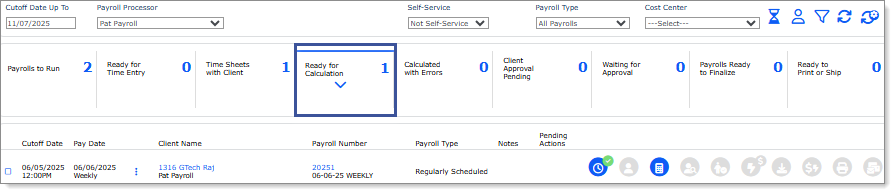
Do the following:
| • | To calculate a single payroll, select the checkbox for the payroll you want to calculate, then click Calculate Selected. |
| • | To calculate multiple payrolls, either select the checkbox for each payroll you want to calculate or click Calculate All to calculate all payrolls listed. |
After clicking a calculation button, the system opens the Calculate All Payrolls form, which displays all payrolls eligible for calculation.
Click Continue to proceed. The system makes the calculations. You can proceed to the next step of the payroll process.
Note: If there are pre-validation errors for a payroll, then the system will not calculate it. You will need to resolve any issues with the payroll to proceed.
