This page has moved and will no longer be updated. To access the current page, click the Online Help  icon in PrismHR or navigate to the new help docs site and search for your topic.
Setting Up Reported Tips
This topic guides you through the payroll process of setting up reported tips and tip overtime. The procedures include:
|
•
|
Updating System Parameters |
|
•
|
Updating Position Codes |
|
•
|
Setting Up FLSA Rulesets |
|
•
|
Viewing Time Sheet Entry |
Updating System Parameters
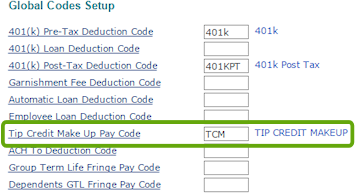
Use the Tip Credit Make Up Pay Code field on the System Parameters form to enter the code for tip credit.
To set the global tip credit make up pay code:
|
1.
|
Open System Parameters (found in the Back Office menu  under System|Change). under System|Change). |
|
2.
|
Scroll down to the Global Codes Setup panel. |
|
3.
|
Select the appropriate Tip Credit Make Up Pay Code. The code will be used to pay the tip credit make up amount calculated. |
Updating Position Codes
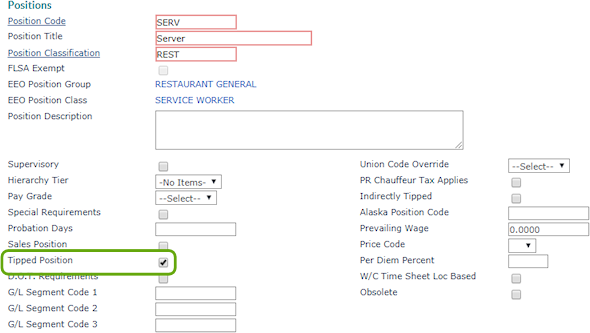
Use the Positions form to indicate this job is a tipped position.
To set up a position code as a tipped position:
|
1.
|
Open the Positions form (found in the menu under Client|Change). |
|
2.
|
Enter the Position Code to edit. |
|
3.
|
Select Tipped Position to indicate this is a tipped position. |
Updating Pay Codes
Use the Pay Codes form to update pay codes to properly calculate tips.
To set up pay codes for tipped employees:
|
1.
|
Open the Pay Codes form (found in the Back Office menu under System|Change). |
|
2.
|
Enter the Pay Code to edit. |
|
3.
|
Scroll down to the Processing Options panel. |
|
4.
|
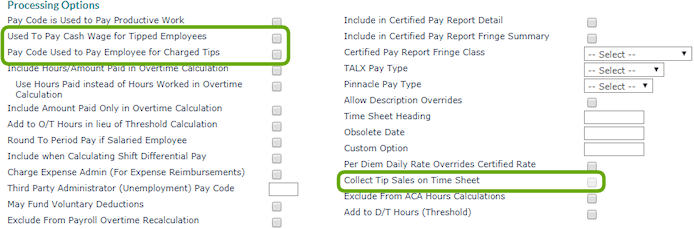
If appropriate, select one of these options: |
|
•
|
Select Used to Pay Cash Wage for Tipped Employees if this pay code is used to pay cash wages for tipped employees. |
|
•
|
Select Pay Codes Used to Pay Employees for Charged Tips to compensate an employee for charged tips. |
|
5.
|
If this is a reported tip pay code, you can select Collect Tip Sales on Time Sheet to display the Tip Sales column next to this pay code column in Summary Time Sheet Entry. This is a memo field for recording the sale amount associated with the reported tip and is used for reporting purposes. |
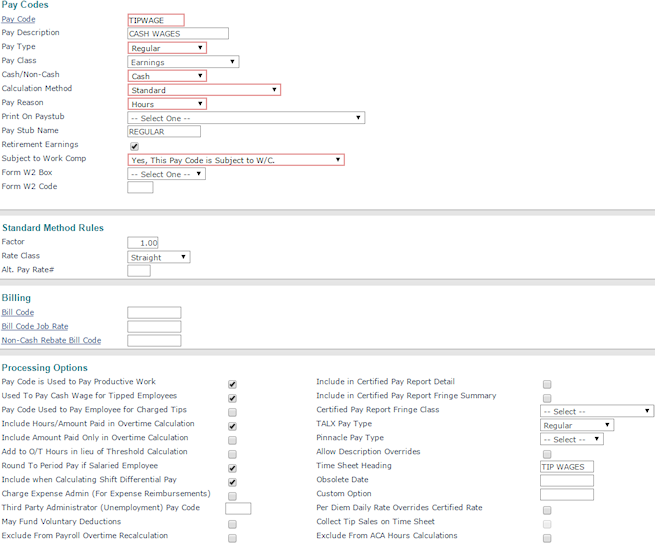
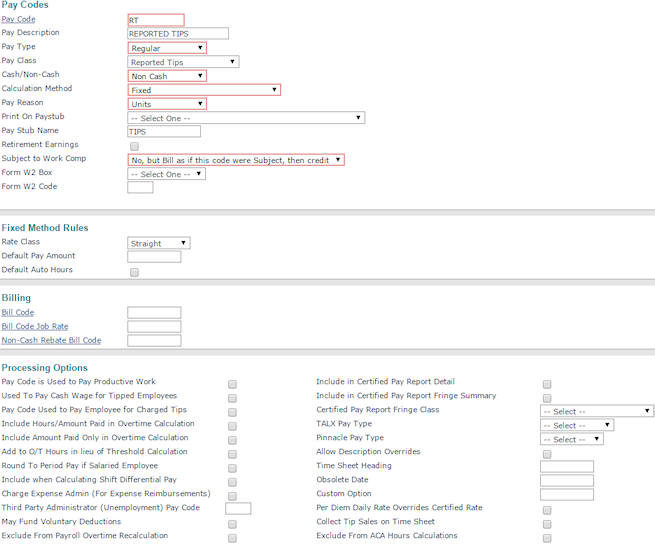
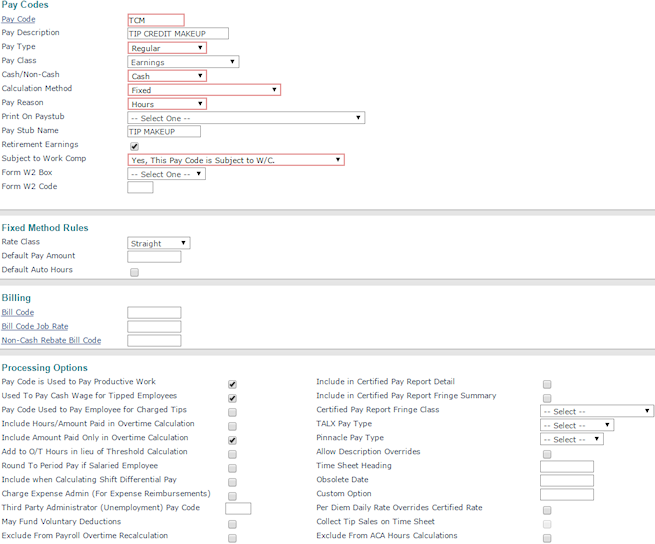
Sample Pay Codes
This pay code is used to pay tipped personnel a Minimum Cash Wage:
This pay code is an example of Reported Tips:
This pay code is used to pay the Tip Credit Make Up Amount Calculated:
Setting Up FLSA Rulesets
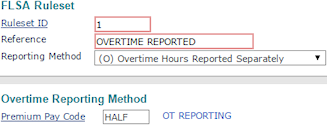
Use the FLSA Ruleset form to set up Fair Labor Standards Act (FLSA) Rulesets for calculating overtime.
To set up an FLSA ruleset for tipped employees:
|
1.
|
Open the FLSA Ruleset form (found in the Back Office menu under (System | Change). |
|
3.
|
Select (O) Overtime Hours Reported Separately from the Reporting Method drop-down. |
Note: Be sure to select a Premium Pay Code of HALF.
|
4.
|
Enter the HALF Premium Pay Code. |
Use the Billing tab in Client Details to determine the number of days to delay New Employee Setup fees.
|
6.
|
Open the Client Details form (found in the menu under Client|Change). |
|
7.
|
Select the Billing tab. |

|
8.
|
Enter the New Hire Fee Day Offset to determine the number of days to delay New Employee Setup fees. |
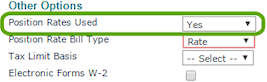
Use the Other Options panel to indicate that this client's bill and pay rates are set by the job.
|
9.
|
Select the Other tab in Client Details. |
|
10.
|
Select Yes from the Job Rates Used drop-down. |
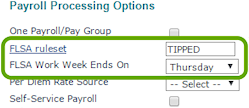
Use the Payroll Processing Options panel to make sure overtime is properly calculated.
|
11.
|
Select Payroll tab in Client Details. |
|
12.
|
Select the FLSA Ruleset to calculate overtime. |
|
13.
|
Select the day on which the FLSA Work Week Ends On. |
Use the Tipped Employees panel to properly adjust taxes.

|
14.
|
In the Adjust Taxes to Cover Cash Shortfall field, indicate the tax adjustment process to use if there is a shortage of cash earnings. |
|
15.
|
Select Adjust Reported Tips to Minimum to adjust reported tips to meet the minimum wage level. |
|
16.
|
Enter the Allocated Tip Calc Percent if the system should use allocated tips calculation process, otherwise leave this field blank. (For example, 8% would be 8.00.) |
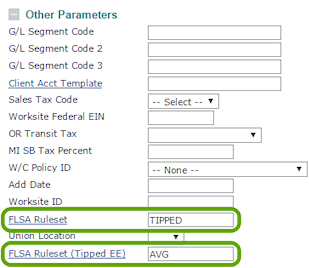
You can override the FLSA Ruleset on the Worksite Locations form with one per location. You can also have one used exclusively for calculations with tipped employees.
|
18.
|
Open the Worksite Locations form (found in the menu under Client|Change). |
|
19.
|
Enter the Location Code. |
|
20.
|
Open the Other Parameters panel. |
|
21.
|
Select the FLSA Ruleset to be overridden. |
|
22.
|
Select the FLSA Ruleset (Tipped EE) to be overridden for the employee. |
Updating Pay Groups
Use the Pay Groups form to change the day the work week ends for this pay group.
To set up a pay group for tipped employees:
|
1.
|
Open Pay Groups (found in the menu under Payroll|Change). |
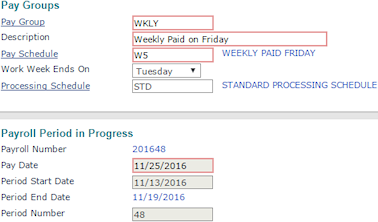
Note: The Work Week Ends On date must coincide with the period end date.
|
2.
|
Select the day on which the Work Week Ends On to override the value in the Client Details form. |
Viewing Time Sheet Entry
Use the Time Sheet Entry form to review payroll information.
To review time sheet entry data:
|
1.
|
Open Summary Time Sheet Entry. This is typically accessed through Payroll Process or SuperBatch. |
|
2.
|
Select the Payroll # you want to view. The Payroll Time Sheet opens. |
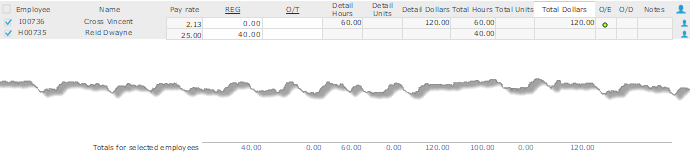
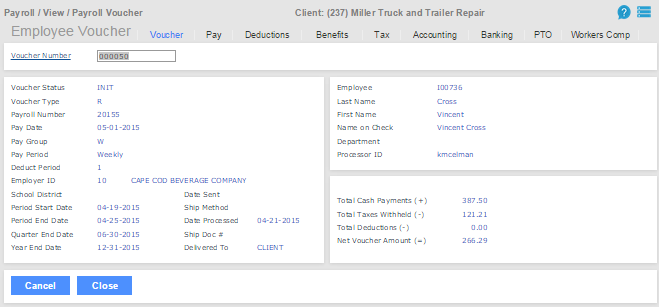
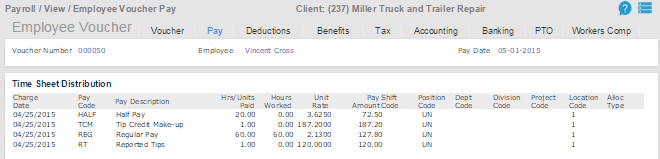
The example below shows an example of an employee working 60 hours at minimum cash wage and reported tips of $120.00. The tips reported are not enough to bring rate of pay up to minimum, so PrismHR calculates a tip credit make up amount.
Use the Payroll Summary to view the Employee Voucher detail.
|
4.
|
Open the Payroll Summary form (found in the menu under Payroll|View). |
|
5.
|
Select the Payroll Number. Payroll information displays. |
|
6.
|
Click the Voucher # for the desired employee. The Employee Payroll Voucher opens. |