This page has moved and will no longer be updated. To access the current page, click the Online Help  icon in PrismHR or navigate to the new help docs site and search for your topic.
Setting Up Work Shift Differential Pay
Use the Shifts, Client Details, and Pay Codes forms to setup work shift differential pay, which involves doing the following:
|
•
|
Creating a shift code with pay differential |
|
•
|
Setting up timesheet access to shift codes |
|
•
|
Including shift differential calculations in pay codes |
Creating a Shift Code with a Pay Differential
This procedure provides an example of setting up a shift code with a pay differential for a night-shift employee.
|
1.
|
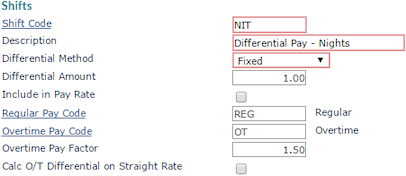
On the Client|Change menu, select Shifts. For example: |
|
2.
|
Enter the Shift Code name. |
|
3.
|
Enter a brief shift Description. |
|
4.
|
Select Fixed in the Differential Method field. |
|
5.
|
Enter the Differential Amount. |
|
6.
|
Select Include in Pay Rate if this differential pay will be added to the employee's pay rate. Otherwise, it will be paid using a separate pay code. |
|
7.
|
Select the Regular Pay Code to pay the shift differential for the employee. |
|
8.
|
Select the Overtime Pay Code to pay the shift differential for the employee. |
|
9.
|
Enter the Overtime Pay Factor to multiply the Overtime Shift Premium amount by when paid using a separate pay code. |
|
10.
|
Select Calc O/T Differential on Straight Rate if the differential on overtime pay is to be calculated using the straight pay rate. |
Setting Up Time Sheet Access to Shift Codes
This procedure ensures the shift code displays on the timesheet.
|
1.
|
On the Client|Change menu, select Client Details. |
|
2.
|
Select the Time Sheet tab. |
|
3.
|
In the Detail Time Entry Parameters table, set the shift parameters. For example: |

Setting Up a Shift Differential Calculation
This procedure ensures that the pay codes you use are setup to include a shift differential calculation.
|
2.
|
On the System|Change menu, select Pay Codes. |
|
3.
|
Select the desired Pay Code. |
|
4.
|
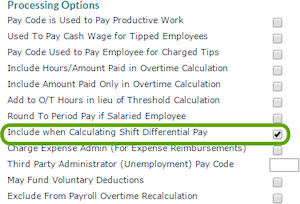
Scroll down to the Processing Options panel and select Include when Calculating Shift Differential Pay. |